ArcGIS Online integration

What it is
You can show your site cameras inside an ArcGIS Online dashboard (ArcGIS Dashboards), next to your maps and layers. VisionHub generates a link with the cameras you choose and, once you paste it into an Embedded content element, anyone who views the dashboard also sees the live stream or the latest photo of each camera.
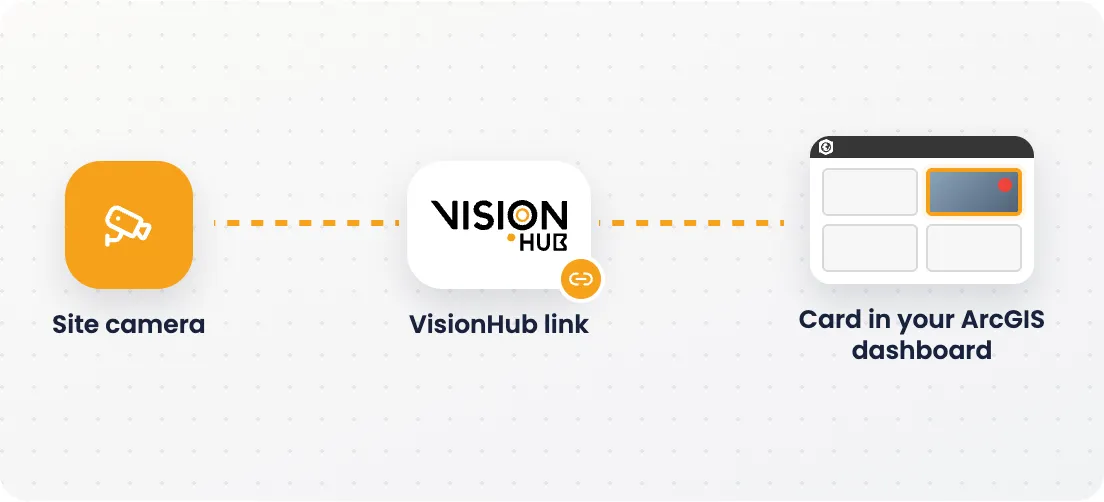
To generate the link you need permission to create share links in the project. To add it in ArcGIS you need an ArcGIS Online organizational account that can create and edit dashboards.
Links: Open ArcGIS Online · Embedded content (ArcGIS Dashboards help)
Generate the link in VisionHub
-
Open Project settings, find the Integrations card and open the ArcGIS Online tab.
-
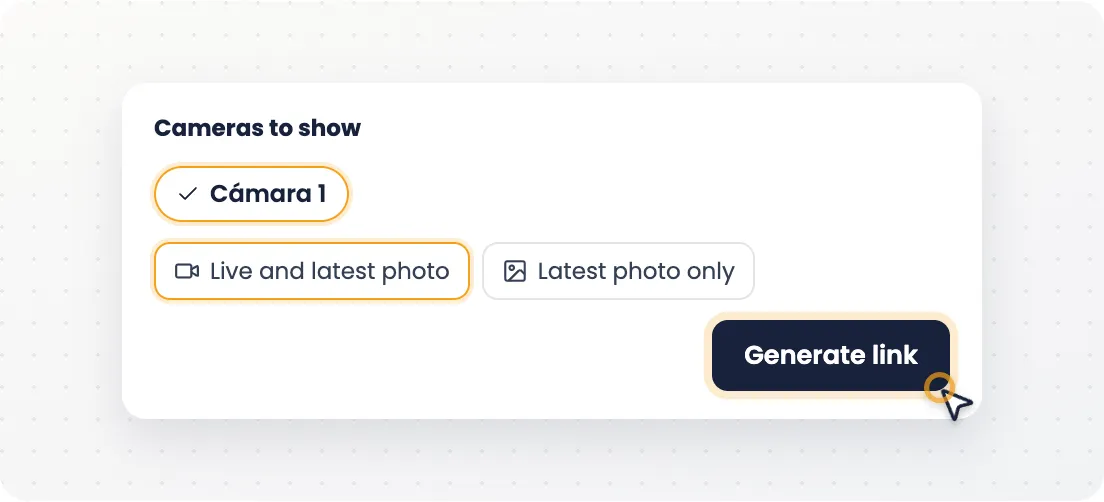
Pick the cameras you want to show by clicking them; you can select one or several.
-
Choose the content mode:
- Live and latest photo: shows the live video and the latest photo of each camera.
- Latest photo only: shows only the latest photo, which updates itself.
-
Press Generate link.
-
Copy the link with the copy button. To check what will be shown, open the preview.
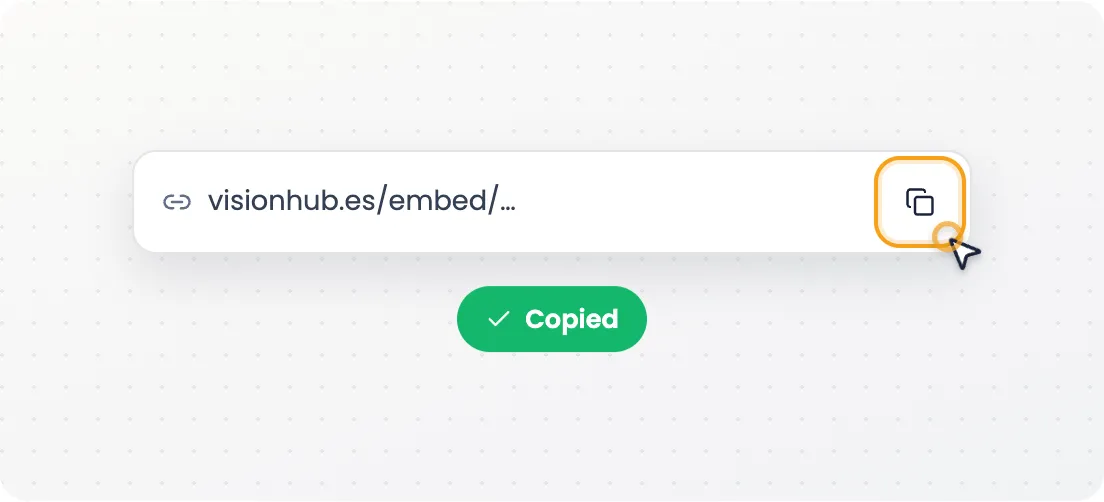
The link has this format: https://app.visionhub.es/embed/<code>.
Add the cameras to a dashboard
-
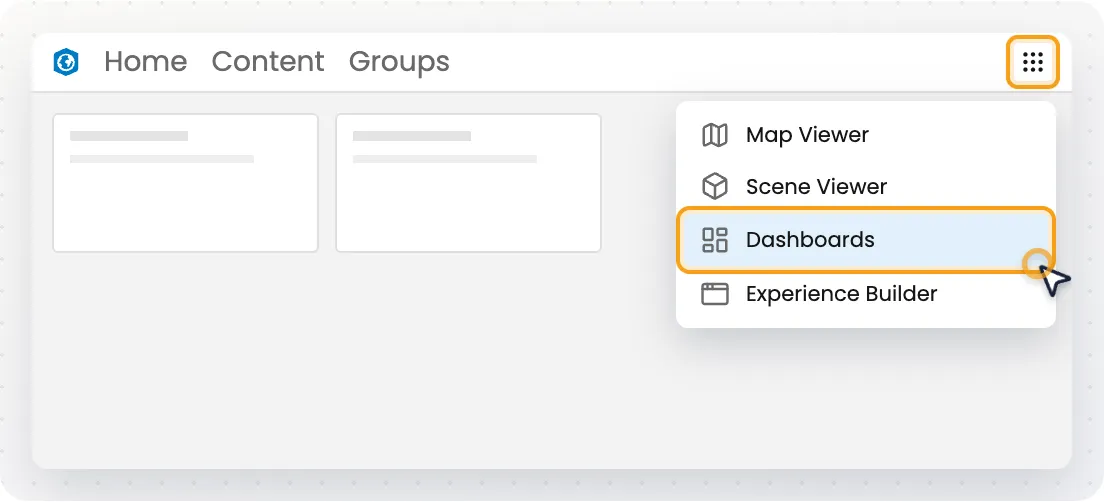
Sign in to ArcGIS Online, open the app launcher (top right) and choose Dashboards. Open the site’s dashboard, or create a new one, in edit mode.
-
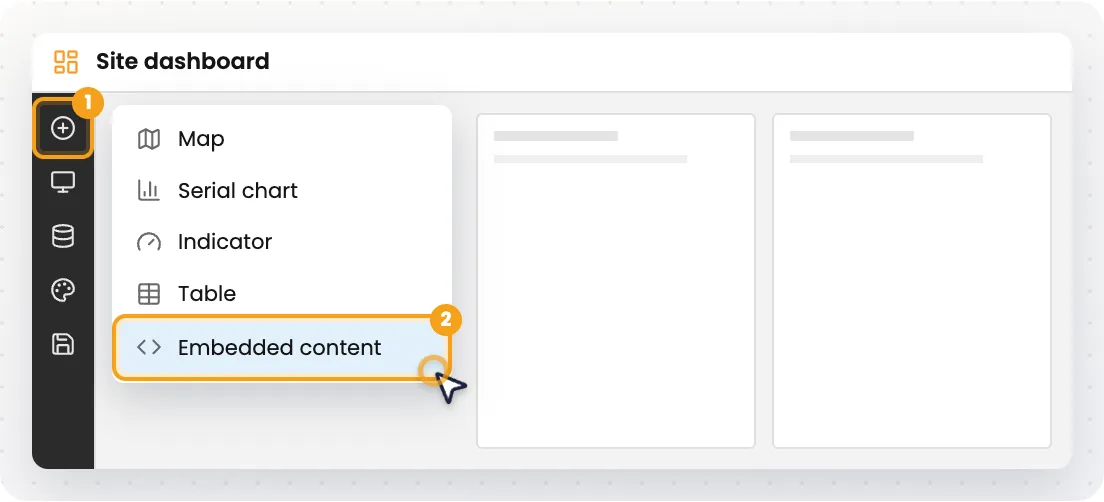
In the side toolbar, press Add element (+) and choose Embedded content.
-
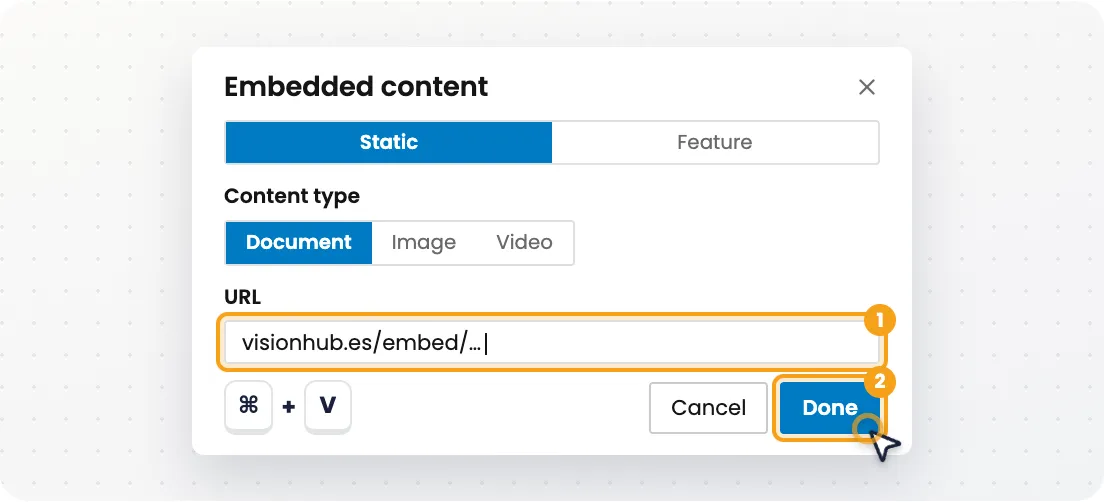
Keep the Type on Static and the Content type on Document. Paste the link into URL: the preview already shows the cameras. Press Done.
-
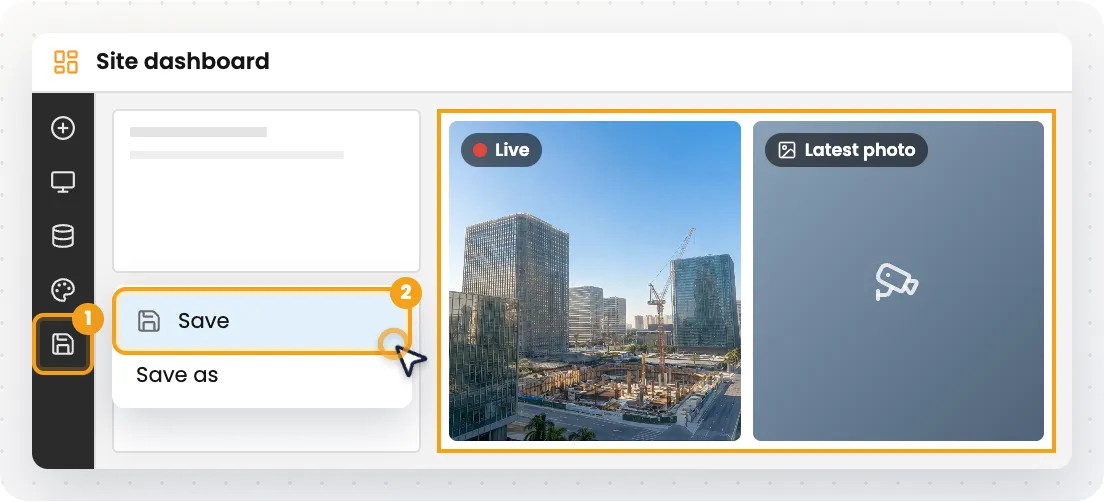
Drag the element to the position and size you want. Then press the save icon in the side toolbar and choose Save.
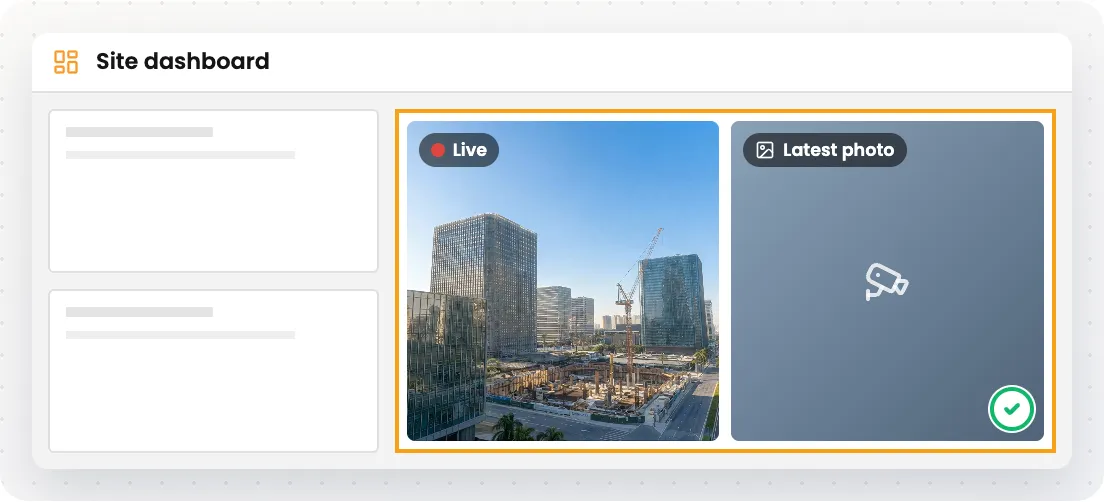
The VisionHub cameras show as one more card in the dashboard. You only need to set it up once.
VisionHub in the app launcher
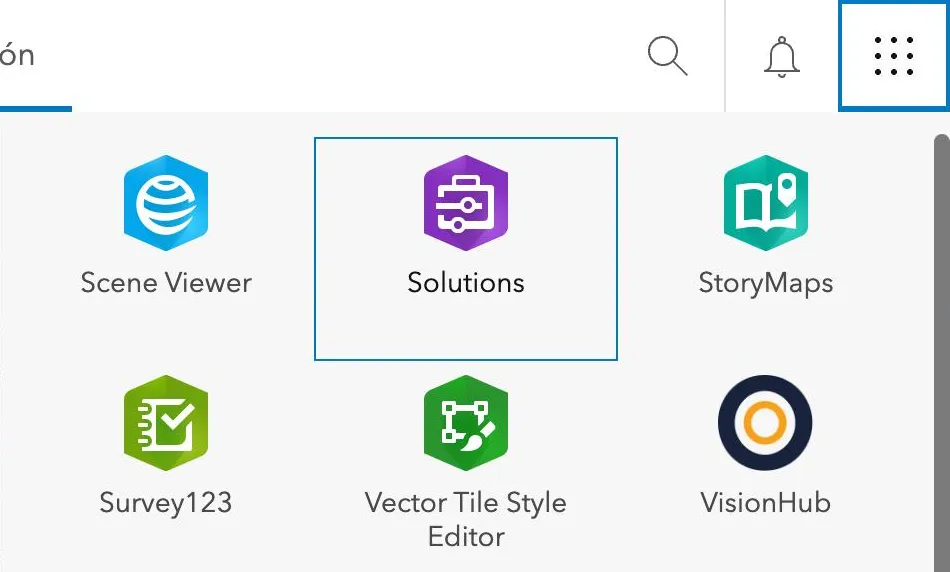
Administrators of an ArcGIS Online organization can add VisionHub to the app launcher, so their team opens it with one click next to the other ArcGIS apps.
- In ArcGIS Online, go to Organization › Settings › Security and, under Apps, press Add approved app.
- Search for the app by the VisionHub item URL that support gives you.
- Turn on Show in app launcher, type «VisionHub» as the Label and press Save.
Things to keep in mind
- Each embedded content element shows the set of cameras in its link. To show different cameras, generate several links and add one element per link.
- To change the cameras, generate a new link in VisionHub and edit the element’s URL.
- If you share the dashboard with other people or groups, they also see the cameras.
If the link is not generated
If the message «The server did not respond correctly. Try again and, if the problem persists, contact support.» appears, press Retry. If the error repeats, write to us through the support chat.
See also Autodesk Forma integration and Procore integration.